


Mirror Video: Flip the Player Horizontally to Learn Along
Learning a dance, a workout, or an instrument from a video is much easier when the picture is mirrored - when the instructor moves to their left, the reflection moves to your left, exactly like a studio mirror. Neither YouTube, Twitch, nor Kick has a flip button. Previews adds one to the player controls: click it and the video flips horizontally. Click again to flip it back.
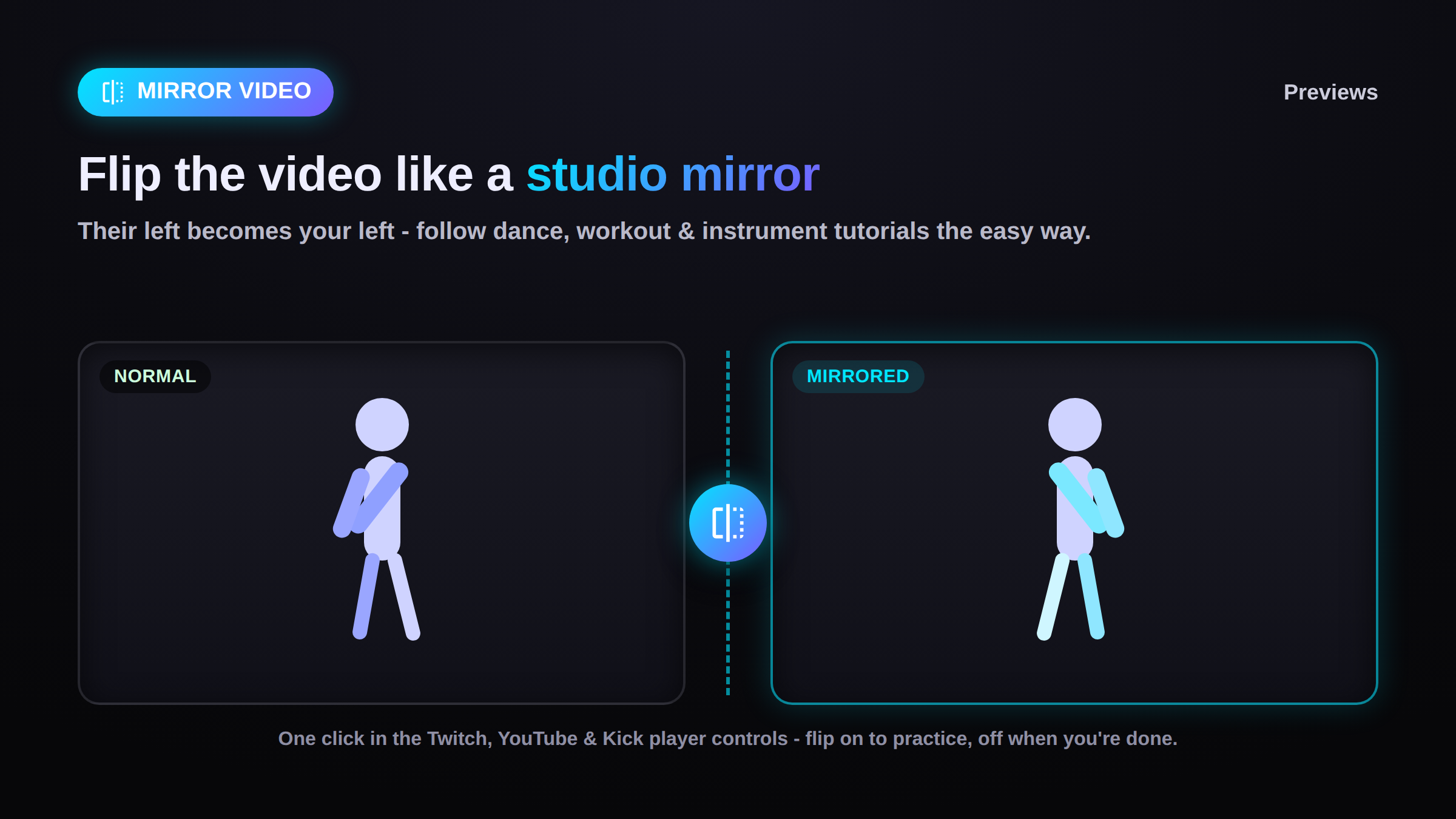
A mirror mode for learning dance, workouts, and tutorials
Previews adds a Mirror button to the player controls on Twitch, YouTube and Kick that flips the video horizontally. When you are learning choreography or an exercise by copying what is on screen, a mirrored picture lets you move the same way the instructor does instead of reversing every move in your head. None of the three sites offers this, so the button is the only one-click way to get it.
Anyone who has tried to learn a routine from a video knows the problem: the person on screen is facing you, so their left is your right. Every step has to be flipped in your head while you also try to keep up. Dance studios solve this with a wall of mirrors - you watch the reflection and copy it directly. Mirroring the video does the same thing on your screen: the instructor's left hand becomes the one on your left, and you just follow along.
It is not only for dance. The same one-click flip helps with yoga and workout videos, guitar and piano lessons (a huge help for left-handed players), sign-language practice, and drawing tutorials - anything where you copy movements you are watching.
How the mirror button works
A mirror icon appears in the player controls. Click it and the whole video flips left-to-right; click it again and it flips back. The button lights up while the flip is on. It is a local, on-screen effect only - it changes how the video looks in your browser and does nothing to the stream itself.
Once Mirror is enabled in Previews settings, the button sits in the player controls on every Twitch, YouTube, and Kick page. One click flips the picture horizontally, so the left and right sides of the frame swap. Click it again to return to normal. The flip is instant and works while the video is playing, paused, in theater mode, or full screen.
The flip stays on while you keep watching the same video - through ad breaks and full-screen toggles - and clears itself when you move to a different channel or video, so you never land on something new and wonder why it is backwards. Reloading the page also starts fresh.
Mirror vs. reverse: what a horizontal flip actually does
Mirroring flips the video left-to-right in space, like a reflection - the timing and audio are untouched and play forward normally. That is different from reversing a video, which plays the footage backwards in time. For learning along with a tutorial you want the mirror (horizontal flip), not a reverse.
People often search for "reverse a video" when what they actually want is a mirror. Previews' Mirror button is a horizontal flip: nothing about the playback changes, only which side of the screen each thing is on. The stream keeps playing live and in sync - you are simply watching its reflection.
Where it works
On YouTube
The Mirror button sits in the YouTube player controls next to the other Previews buttons, on regular videos and live streams. This is where most dance and tutorial videos live, and it is the reason the feature exists - a viewer asked for it specifically to learn choreography from YouTube.
On Twitch
The button shows up in the Twitch player controls on live channels, and inside embedded Twitch players too, so a mirrored view works whether you are on twitch.tv or watching through a Multi-Stream layout.
On Kick
Kick gets the same button in its player controls, on the main site and in embedded Kick players. Each platform has its own switch in Previews settings, and separate switches for the main player and for embeds, so you can turn the button on exactly where you want it.
Pairs well with slow-motion and looping
Mirroring is the first half of a good practice setup. The other half is slowing the hard parts down: Previews' Playback Speed Controls add speed buttons to the same player, so you can drop a tutorial to half speed while it is mirrored and study a move frame by frame. Together they turn any tutorial into a practice-along you can actually follow.
Frequently asked questions
Does mirroring the video change the stream or break anything?
No. The flip is a local, cosmetic effect applied only to how the video looks in your own browser. It does not touch the stream, the streamer, or anyone else watching, and it cannot affect your account - so there is nothing against any platform's rules about it.
Will on-screen text and overlays be backwards while it is mirrored?
Yes - because the whole picture is flipped, any text, captions, or streamer overlays read backwards while Mirror is on. That is expected: it is a "flip while you practice" tool, not something to leave on all the time. Turn it off with the same button when you are done following along and everything reads normally again.
Can I mirror a YouTube video for dance practice?
Yes - that is exactly what it is for. Open the dance video, click the Mirror button in the player controls, and the instructor now moves the same way you would in front of a mirror. Pair it with slower playback to work through the tricky parts.
Does the flip stay on when I switch to another video?
No. Mirror clears itself when you move to a different channel or video, so you never land on something new and find it unexpectedly backwards. It stays on while you keep watching the same thing - through ad breaks, theater mode, and full screen - and a page reload always starts normal.
Is this the same as reversing the video?
No. Mirroring flips the picture left-to-right, like a reflection, while the video plays forward at normal speed with normal sound. Reversing would play the footage backwards in time. For learning along with a tutorial you want the mirror, which is what this button does.